Maps for Sage CRM – Bulk Geocoding
Use Bulk Geocoding to prepare map locations for a selection of CRM records. Geocoding converts an address into latitude and longitude. Incomplete or ambiguous addresses can fail or produce an unexpected location. Google lookups can incur charges. Review your Google Maps billing and usage controls before processing large selections.
Batch Name
Bulk geocoding is carried out in the background in queued batches. This screen enables you to create a batch, specify which records should be included in the batch and submit it for processing.
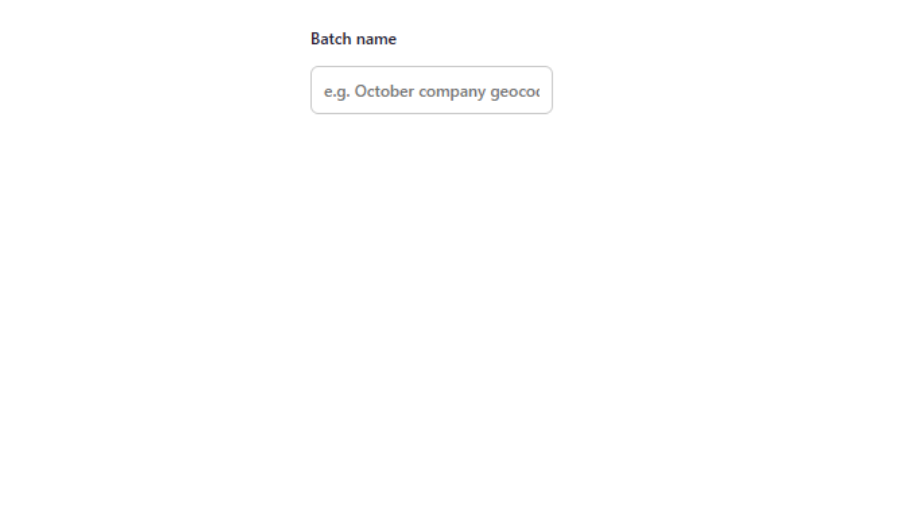
Give your batch a meaningful name which can be used to identify it later.
Records to Geocode
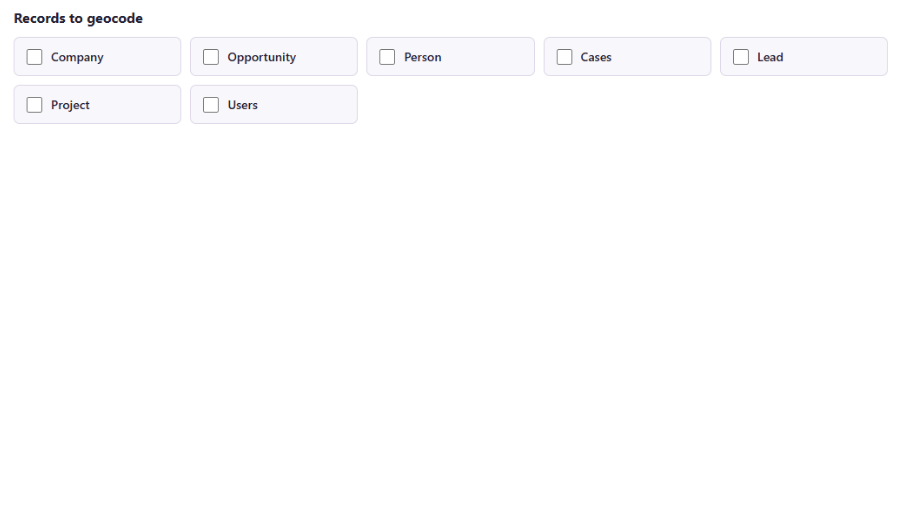
Select one or more entities for which you’d like to bulk geocode records.
Typically it is best to work with a single entity at a time, as when you select conditions (below) the fields available will be restricted to only those available on ALL selected entities.
Processing Mode
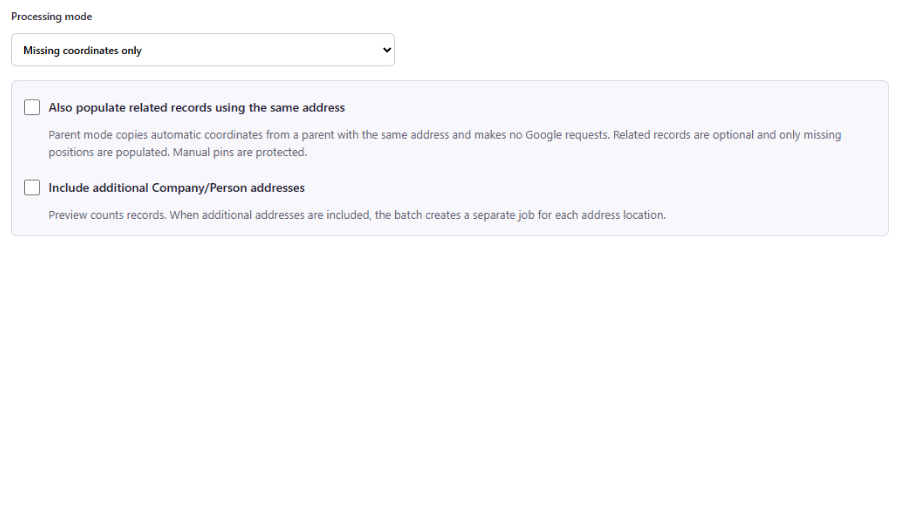
Select the type of geocoding mode you would like to process.
- Missing coordinates only
- Processes records that do not yet have a saved location. This is normally the appropriate starting point for an initial setup.
- Check for changed addresses
- Processes records whose address has changed since their location was last calculated.
- Re-geocode automatic positions
- Looks up addresses again even where coordinates already exist. Review the selection carefully because this can generate additional Google Maps usage.
- Populate missing coordinates from parent records
- Populates eligible related records from an existing parent location where they use the same address. This can avoid another Google lookup. Example: geocoding opportunities or cases based upon the related company record
Optional Settings
- Also populate related records using the same address
- Copies automatic coordinates from a parent with the same address and makes no additional Google requests. Related records are optional and only missing positions are populated. Manual pins are protected. Example: geocoding opportunities or cases from the related company
- Include additional Company/Person addresses
- When geocoding companies or people, select this option to geocode ALL addresses rather than just the primary address
Conditions
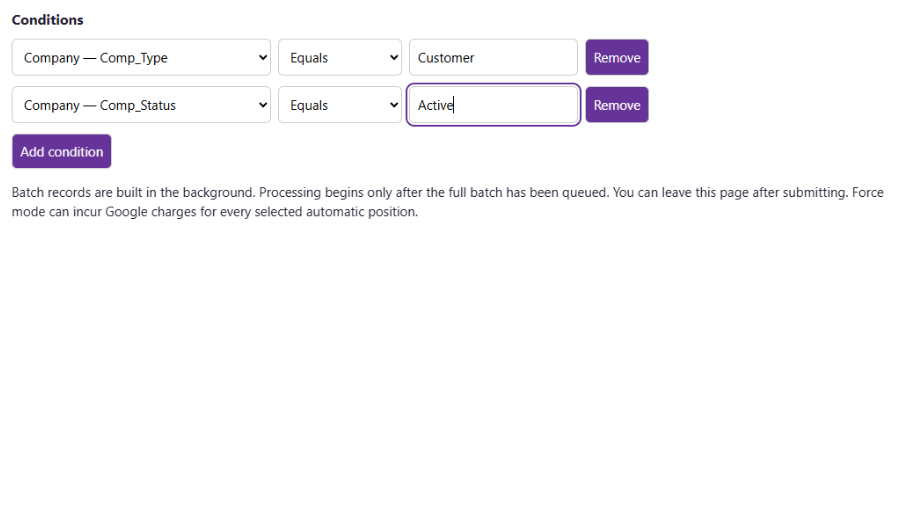
Add conditions to your batch to further limit the records you wish to geocode.
The fields available to use in conditions are those from the entity you have selected, as well as any related entities specified in the entity configuration. Example: Company also offers fields from the Address table
You can add as many conditions as you wish. Multiple conditions are applied using AND logic, so only records which meet ALL of your conditions will be included in the batch.
Preview and Submit
Before a batch can be submitted, you must preview it to ensure that the correct results are being returned.
Click the Preview Batch button to see a list of records which will be included in your batch. A count of records will be displayed and the first 200 results will be shown.
Once you are happy with the records to be included, click the Submit Batch button. The batch will be added to the geocoding queue and processed in the background. Once your batch has been submitted you can leave the page and can view the progress of your batch in the Queue area.