Maps for Sage CRM -Entity Configuration
Use Entities to choose which CRM record types can appear on maps and where their addresses come from. A mapped entity can be a standard entity, such as Company or Person, or a custom entity.
Mapped Entities
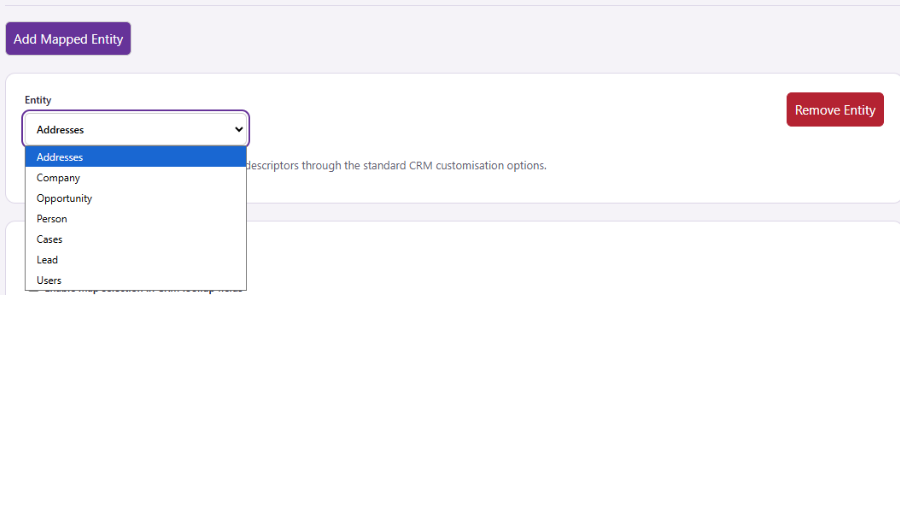
As standard the following entities are enabled in Maps for Sage CRM:
- Company
- Person
- Lead
- Opportunity
- Cases
- Users
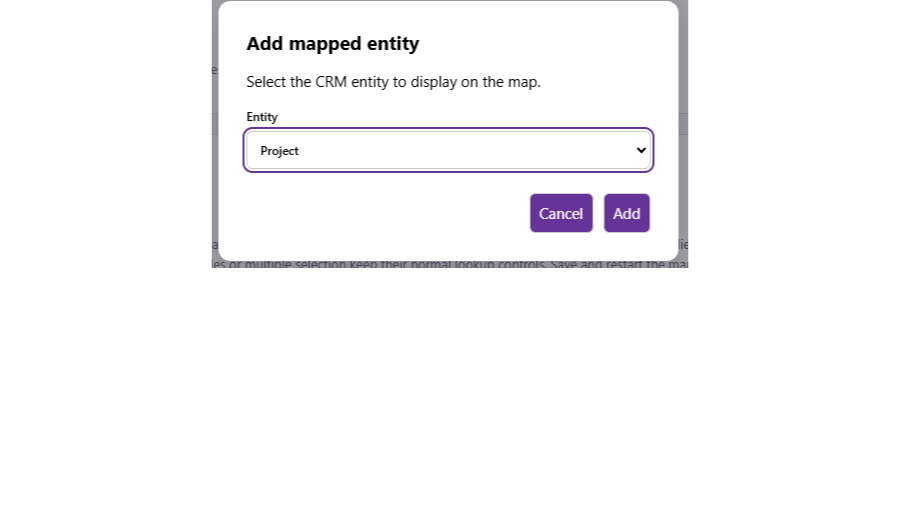
Click the Add Mapped Entity button to enable a new entity for mapping. See further down in this guide for more information on mapping a custom entity.
Select an entity in the dropdown list to configure settings for that entity.
Click the Remove Entity button to remove an entity from the list of mapped entities.
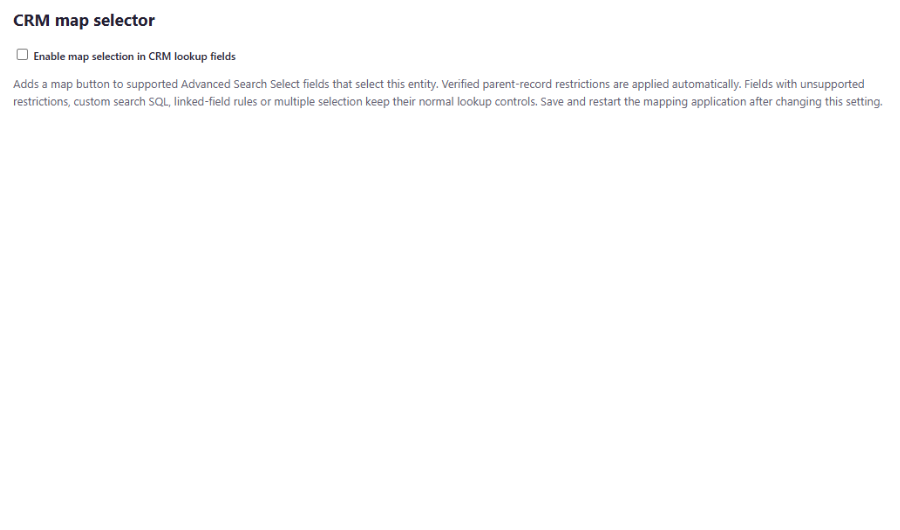
CRM Map Selector
Check this box to enabled Maps for Sage CRM to used to select this type of record in an Advanced Search Select field.
When enabled, wherever an Advanced Search Select field for the enabled entity appears on a screen, a new button will appear which enables records to be selected using Maps for Sage CRM.
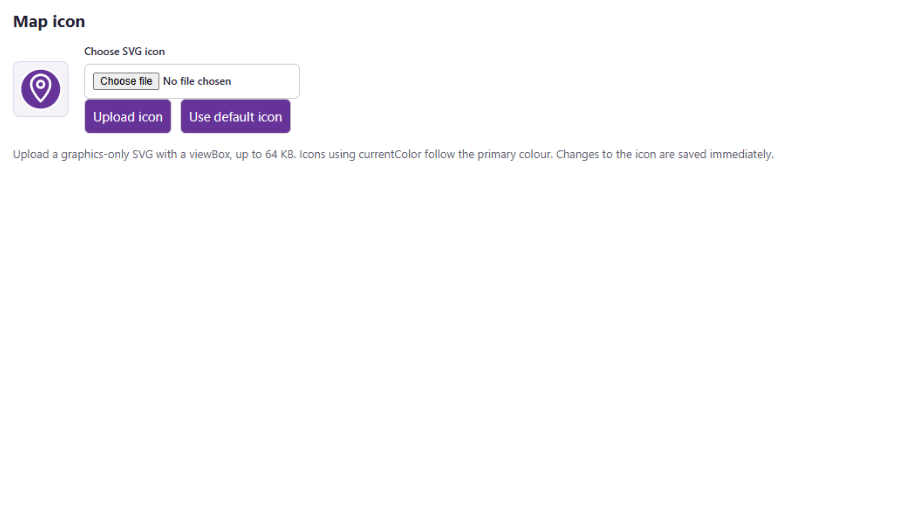
Map Icon
Upload a custom icon for the selected entity or reset the entity’s icon back to the Maps for Sage CRM default.
Two icon packs are included with Maps for Sage CRM.
Address Source
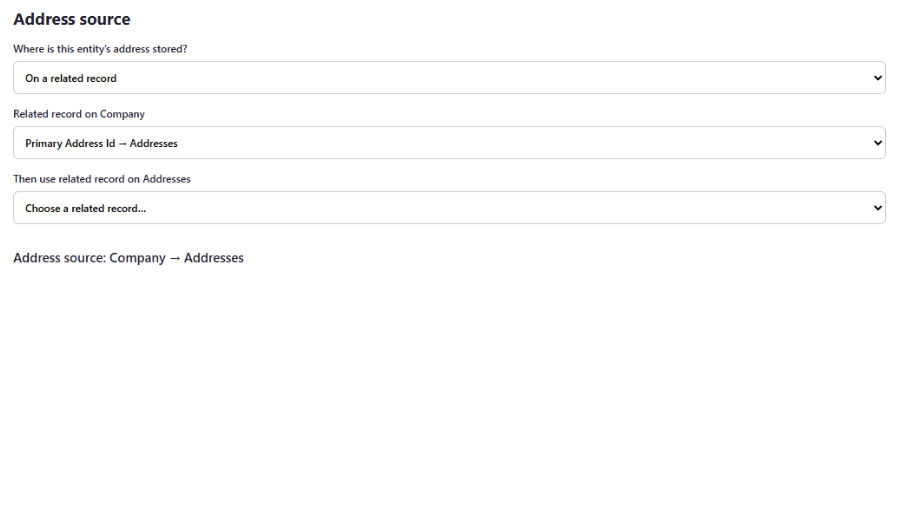
Specifies where the address for the selected entity is obtained from and which fields to use.
- Where is this entity’s address stored
- If the entity has address fields directly on it, select “On this record”
- If the entity’s address should be obtained from a related entity, select “on a related record”
- When “on a related record” is selected, another dropdown will be displayed – this allows you to select the related record based upon any ID fields on the selected entity. It is possible to add as many relationship layers as required
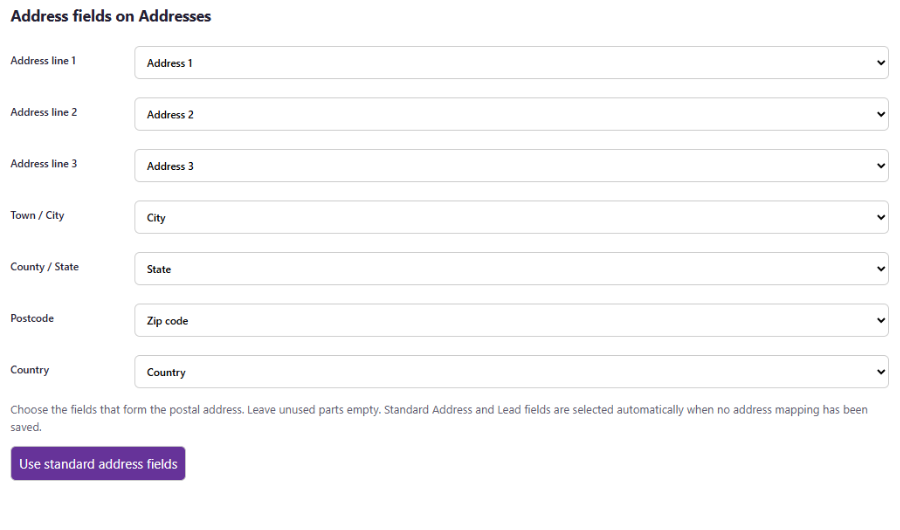
- Address fields
- For each typical address line, select the fields which hold that data.
- The entity from which you can select address fields is established based upon the Where is this entity’s address stored configuration above, which could be the entity itself or a related entity.
Out-of-the-box, Maps for Sage CRM comes with pre-configured settings for Company, Person, Lead, Opportunity, Cases and Users.
- Company and Person are mapped via their primary address
- Opportunity and Case are mapped via the associated company’s primary address
- Lead is mapped based upon address fields directly on the Lead record
- As part of the installation of Maps for Sage CRM, address fields are added to the Users table/screens. This enables CRM users to be mapped just like other records.
Mapping Custom Entities
When a custom entity is added as a mapped entity, all of the above settings apply in the same way.
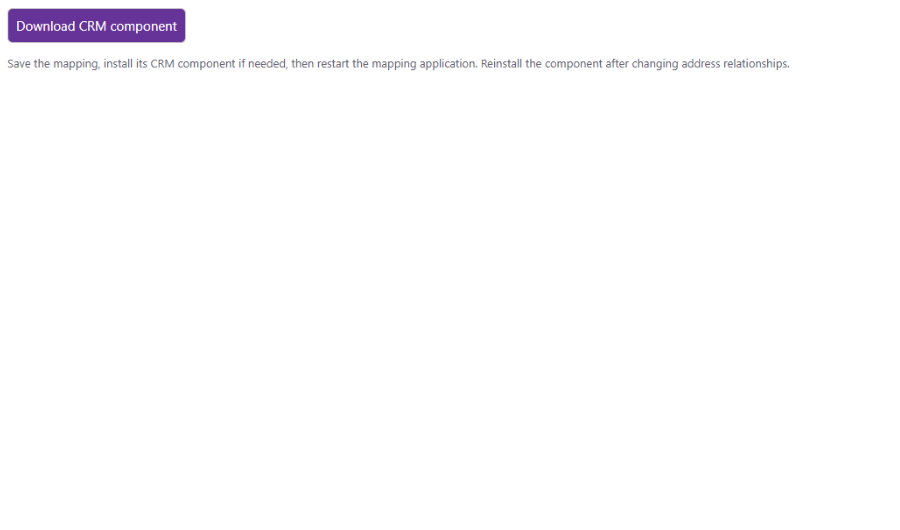
Once you have added your custom entity, Maps for Sage CRM provides a CRM component to create a Maps tab under the entity and also add trigger in the background which enables automatic geocoding for the entity.
Click the Download CRM Component button and Maps for Sage CRM will provide you with a component zip file, which can be installed via Administration > Customisation > Component Manager