Maps for Sage CRM – General Settings
Use Settings to configure Google Maps, the default map view, appearance and background geocoding.
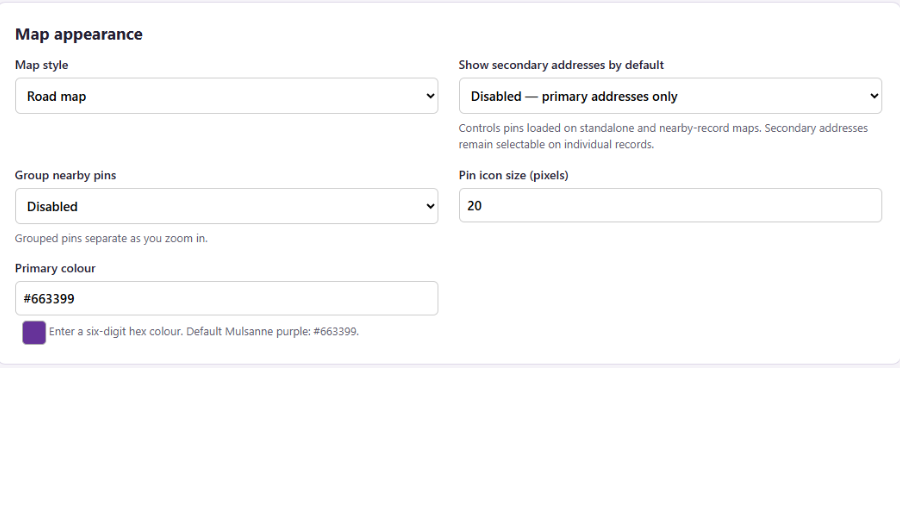
Map Appearance
- Map style
- Chooses the map background: Road map, Satellite, Satellite with labels or Terrain. Satellite with labels combines satellite imagery with road names and labels. Terrain highlights landscape features.
- Show secondary addresses by default
- Specify whether secondary addresses for companies and people should show as pins on the standalone map by default. Enabling this may affect loading times.
- Group nearby pins
- Combines nearby pins into numbered groups when enabled, making busy maps easier to read. Groups separate as you zoom in. When disabled, pins are displayed individually.
- Pin icon size (pixels)
- Sets the size of record pin icons, from 20 to 80 pixels. Larger icons are easier to see and select but cover more of the map.
- Primary colour
- Sets the main colour used by the Maps interface and pin icons that follow the configured colour. Enter a six-digit hexadecimal colour code preceded by #.
Standalone map starting view
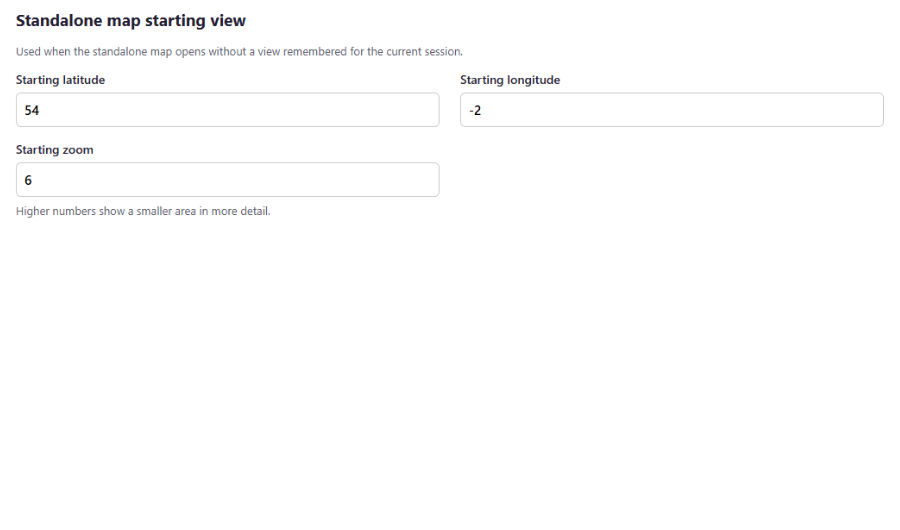
These settings apply when the standalone map opens without a view remembered for the current session.
- Starting latitude
- Sets the north–south position of the starting map centre. Enter a value between −90 and 90. Positive values are north of the equator; negative values are south.
- Starting longitude
- Sets the east–west position of the starting map centre. Enter a value between −180 and 180. Positive values are east of Greenwich; negative values are west.
- Starting zoom
- Sets the initial zoom level, from 1 to 22. Lower numbers show a wider area; higher numbers show a smaller area in greater detail.
Automatic Address Updates
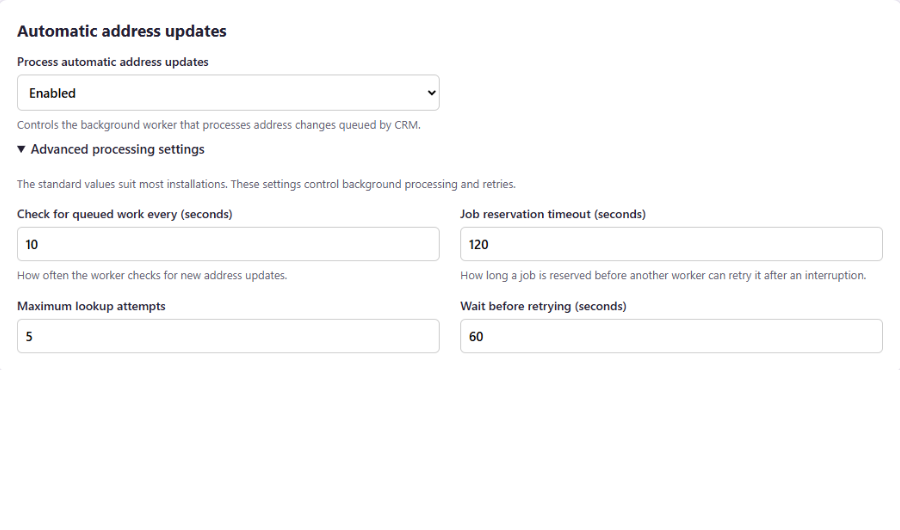
These settings control how Maps for Sage CRM processes address changes queued when CRM records are created or updated.
- Process automatic address updates
- Enables or disables the background worker that processes address changes queued by CRM. When disabled, queued work is not processed by this worker until it is enabled again.
- Advanced processing settings
- The standard values suit most installations. Expand this section if you need to adjust background processing and retries.
- Check for queued work every (seconds)
- Sets how often the background worker checks for new address updates. A shorter interval picks up new work sooner but checks the queue more frequently.
- Job reservation timeout (seconds)
- Sets how long a job remains reserved for processing. If processing is interrupted, the job can become available for another attempt after this period, preventing it from remaining reserved indefinitely.
- Maximum lookup attempts
- Sets the maximum number of processing attempts for an address lookup, including the initial attempt. Once this limit is reached, an unsuccessful job remains failed until further action is taken.
- Wait before retrying (seconds)
- Sets the delay before another attempt is made after a failed lookup.
Google Maps Setup
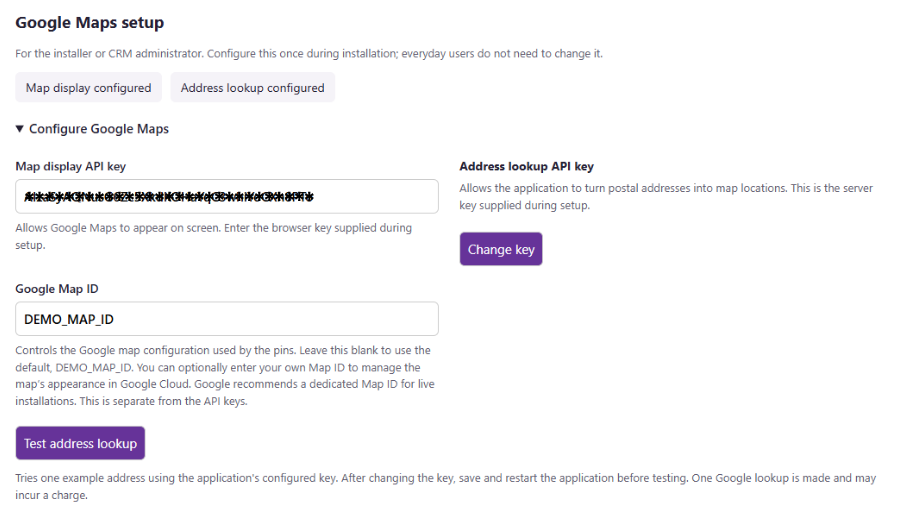
Expand Configure Google Maps to view or change these settings. Initial setup and API key restrictions are covered in the Google Maps Setup guide.
- Map display API key
- The browser API key that allows Google Maps to appear on screen.
- Address lookup API key
- The server API key used to convert postal addresses into map coordinates. The saved key stays private on the server and is not displayed on this page.
- Change key
- Opens the field for entering a replacement address lookup API key.
- New address lookup API key
- Enter the replacement server API key. Leave this field blank to keep the existing saved key.
- Cancel key change
- Closes the key editor without applying a replacement key.
- Google Map ID
- Identifies the Google map configuration used by the map pins. Leave this blank to use the supplied default, DEMO_MAP_ID, or enter your own Map ID. This is separate from the API keys.
- Test address lookup
- Tests an example address using the application’s configured server API key. After changing the key, save and restart the Maps application before testing.